After users have captured and submitted all required information, the captured information gets used to create relevant reports for users to access. These reports are created in SAP BusinessObjects. The reports can be accessed via the View Report links found on the User's In-tray and on the Report Submission Page. These links work as follows;
The User's Branch Report
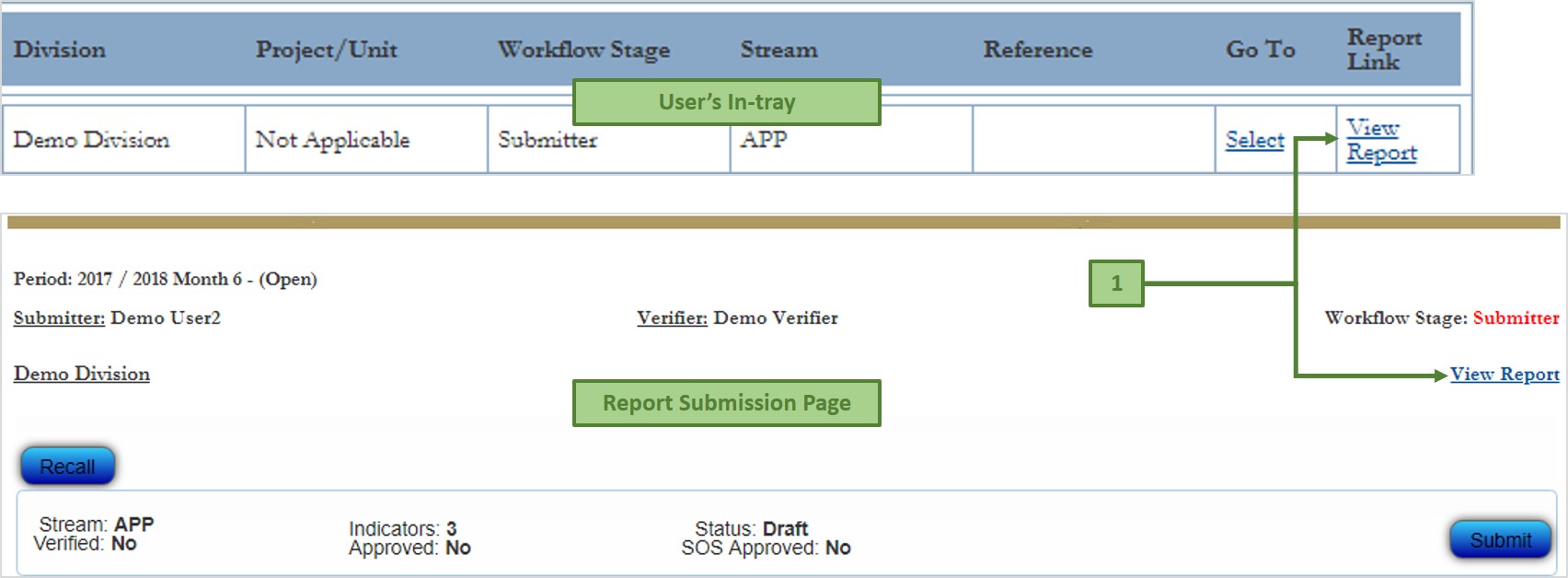
On your in-tray or on the Report Submission page, click on the View Report link (labelled 1 on the image above - both links work exactly the same). Clicking this link opens the Log On page on SAP BusinessObjects, as displayed by the image below;
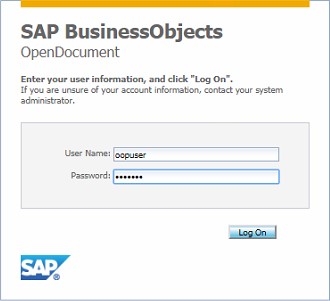
On the logon page, supply the logon credentials. For all GP Office of the Premier users the User Name is oopuser, and the password is oopuser (in small letters). The click on Log On, or press Enter on your keyboard. This opens the Report for your Branch for the current reporting period directly.
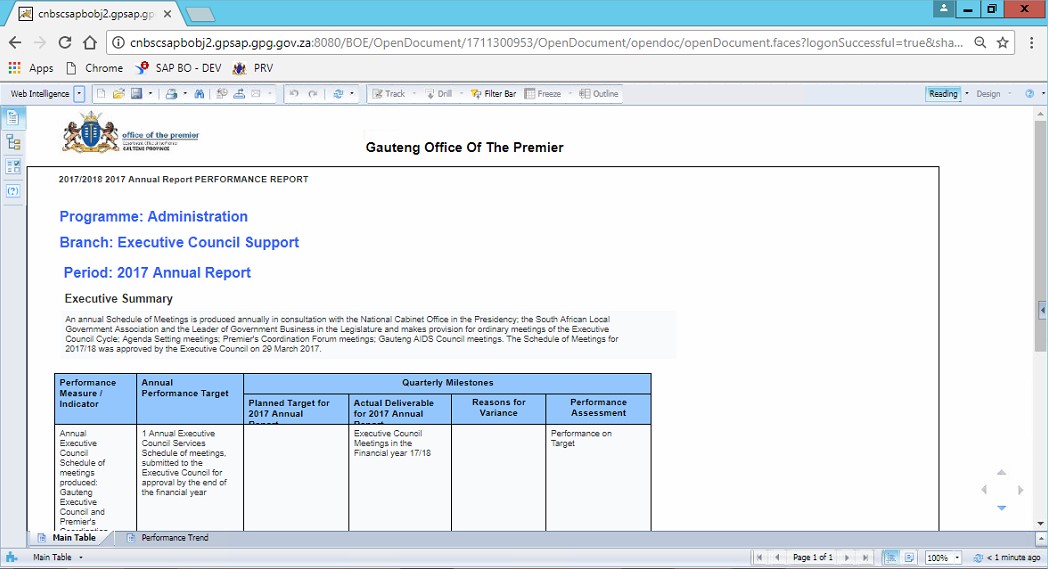
The image below is an example of a branch report;
To save the report to your computer, click on the Export button (label 1 on the image below)
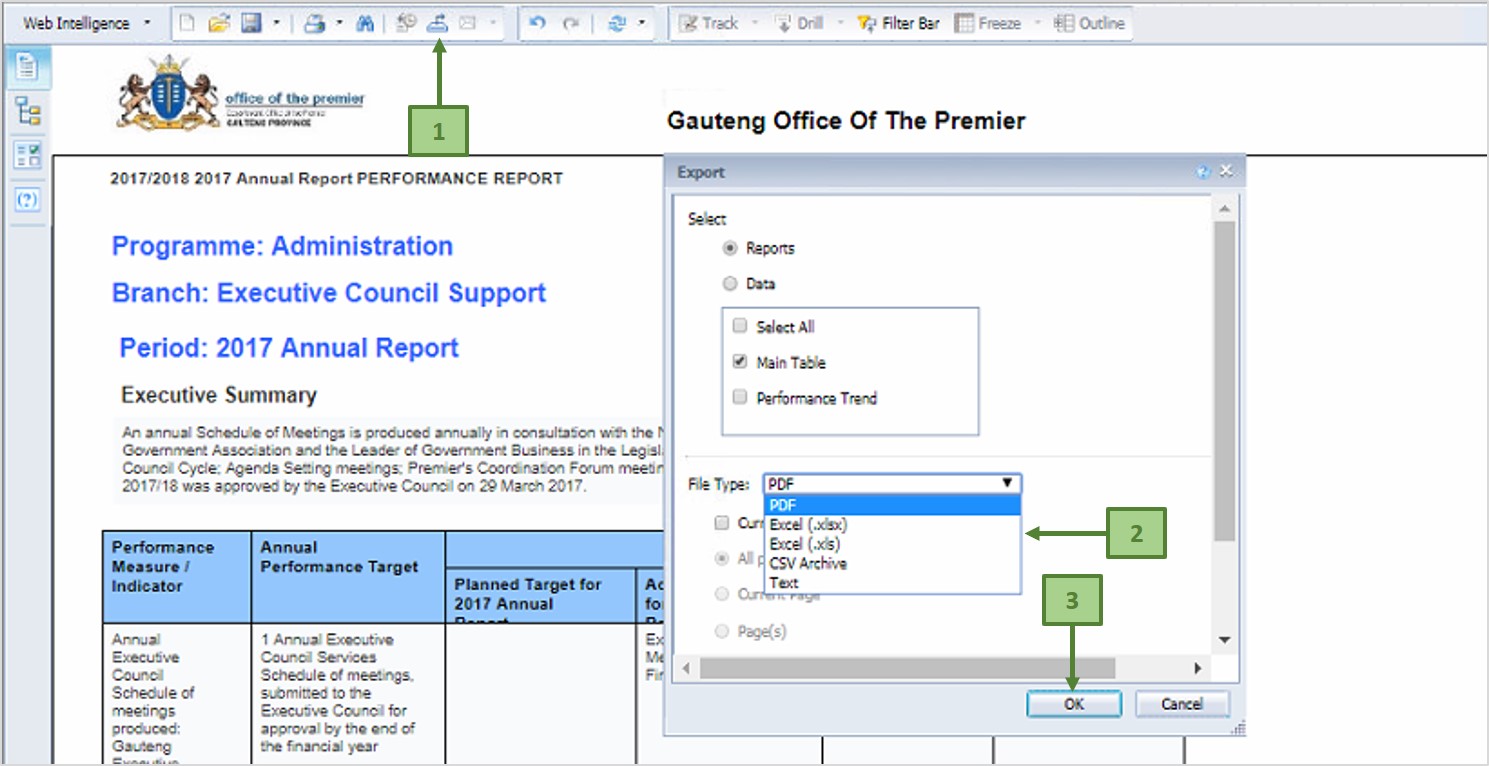
Then, on the pop-up dialog, select the desired file type from the File Type drop-down list (label 2) and click OK (label 3)
You can only access the SAP BusinessObjects reports when you are inside the premises of the Gauteng Provincial Government - (back)